
Are you experiencing a slow experience while using the Instagram app, or are you coming across annoying bugs that prevent you from scrolling through your feed?
Possibly, it is time to press the button labeled “Refresh”!
In the same way that emptying your wardrobe creates room for new clothing, clearing out the cache on your Instagram app can make place for a more streamlined and efficient experience on your iPhone.
Explore our in-depth tutorial to learn how a simple cache-clearing technique can breathe new life into your application and restore the flawless Instagram experience that you have come to find so appealing.
Are you ready to take your social media game to the next level? It’s time to get started clearing the Instagram cache on your iPhone!
Does Instagram allow users to clear their iPhone cache?
Instagram doesn’t have an integrated method for clearing cache on iOS devices. Instagram doesn’t provide a direct way to erase your cache as other applications do; instead, you can only control your data consumption and storage indirectly.
But with some methods, you can do this act that we will talk about to continue:
Step by Step for Clearing Instagram Cache on iOS Devices

Although Instagram doesn’t provide an official way to clear cache on iOS devices, there are a few efficient ways you can use to manage and remove cached data.
For the best experience with the Instagram app, below is a detailed guide:
✓ Select “Settings” from Your iPhone
To begin clearing the Instagram cache on your iPhone, open the “Settings” app once you activate your iPhone. Here, you can control the amount of storage and cache your program uses.
✓ Use of iCloud & Access Storage
Move down the list until you see “General,” and then choose “iPhone Storage.” In this section, you can see which applications are utilizing the most storage space.
✓ Locate Instagram on the Index
Instagram should be at the bottom of the list. To see its storage information, tap on it.
✓ Offload the app
“Offloading” the program is the way to go instead of immediately wiping the cache, which isn’t possible on iOS. This uninstalls the software yet preserves all of its data and documents. Press “Offload App” once to begin, and then press it again to confirm.
✓ Install Instagram again
Return to the App Store and reinstall Instagram after you have finished unloading. By installing it from scratch, you can clear all of your previous data and begin with the most recent version of iOS.
These techniques manage and minimize cached data, improving app speed. Offloading and reinstalling Instagram, limiting data consumption, and updating your app can improve Instagram performance. If your app keeps malfunctioning, try these actions.
Different Approaches to Instagram Storage Management on iOS
Other methods exist for managing your Instagram data if uninstalling and reinstalling sounds excessive.
Although there isn’t a built-in way to erase Instagram’s cache on iOS, you can control how much data the program consumes by going to “Settings,” selecting “Account,” and finally, “Mobile Data Use.”
Toggle off “Use Less Data” to make Instagram use less data. Also, to keep your Instagram app functioning efficiently, delete outdated photographs and videos from your account on a regular basis to decrease cached data.
Finally, to take advantage of the most recent speed enhancements and bug fixes, make sure your Instagram app is updated by checking for updates in the App Store.
The Significance of Instagram Cache Cleaning
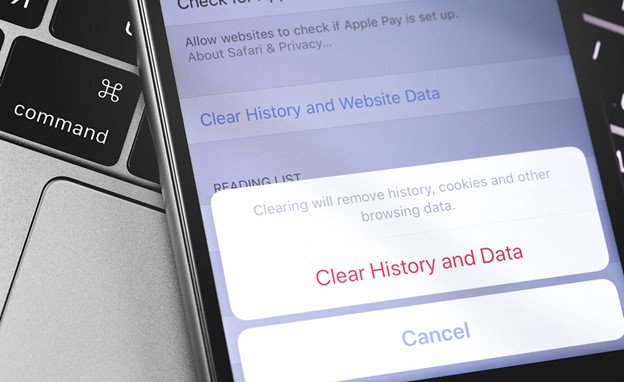
For Instagram to continue performing at its best, clearing the cache is an important step, particularly for those who use the service often.
To make pages load faster, the cache frequently uses assets such as videos, photos, and data. As time goes on, this cached data can build up and take up precious storage space on your smartphone, resulting in program crashes, sluggish performance, and more.
In order to keep Instagram running smoothly, it’s a good idea to clear your cache on a regular basis. Furthermore, it fixes typical issues like sluggish loading, freezing, or incorrectly displayed graphics.
To keep Instagram running smoothly and quickly without any hiccups, emptying the cache is a must-do maintenance task. Not only does it make the program run faster, but it also allows you to manage how much space Instagram uses.
Why Does Instagram Take Up So Much Space on My Phone?
There are a number of reasons why Instagram can quickly turn into a major storage hog on your mobile device. To begin, the program keeps a copy of your frequently used media items in its cache, such as images, videos, and other files.
This cache aids the app’s loading speed, but it may collect and take up a lot of storage space over time. Instagram uses a lot of storage space since it automatically downloads high-resolution photos and videos.
Another factor contributing to Instagram’s expanding size is the frequent use of its features like stories, reels, and direct messaging. Without regular cleaning, your device’s storage may soon fill up with saved drafts, downloaded media, and activity data.
Additionally, Instagram adds to its footprint by storing material for future viewing when you use it offline.
You can keep Instagram from eating up all your storage space by reinstalling the program on occasion to erase old data, managing the app’s cache, and removing unneeded content.
Conclusion
Finally, if you own an iPhone, emptying the cache on Instagram is an easy and effective technique to speed up your app and make it run better.
If you’re experiencing sluggish loading speeds or clumsy scrolling on Instagram, try removing some of the unneeded data by following the instructions provided in this comprehensive tutorial.
Your app’s performance and the quality of your social media interactions can be greatly improved with regular cache management.
Is your Instagram performance ready to be boosted?
Try it out for yourself by following our advice, and also add extra tips and tricks if you know we missed clearing the Instagram cache on your iPhone!